




3 ways to make everyday life easier as a developer with 1Password

Here at Ur Solutions, we have long encouraged and facilitated the use of password managers for the secure storage and sharing of passwords, codes, API tokens and other secrets. Until the new year, our preferred service was LastPass, but in light of new information about the scale of the data breach they experienced this autumn, it was decided to switch to 1Password. Our CTO Ola has written a post about why this change was necessary.
In conjunction with the release of version 8 of its software in 2022, 1Password has rolled out a number of features aimed directly at developers. I have selected three that I particularly like.
The SSH agent
When I mention the word "SSH keys", most people probably think of the obscure file you once created to avoid having to enter your password every time you want to push something to GitHub. Now it must be said: There is nothing fundamentally wrong with SSH keys as they work today, given that you use a sufficiently secure cryptosystem. The potential pitfall is that you like to reuse the same key across different services, in the same spirit as reusing passwords when you don't have a password manager. If you have several machines, you also have to make your own keys for each of them, as well as maintain them.
The good news is that 1Password has support for both generating and storing SSH keys, as well as a separate SSH agent to feed the correct key to various services on the machine that use SSH, such as git. This means that you can go from one key per machine to one key per service. These keys can also be synchronized across all devices you have 1Password installed on. In the event that one of the keys is compromised, it is quick to replace it on this one service, without having to make it an all-day operation to change everything.
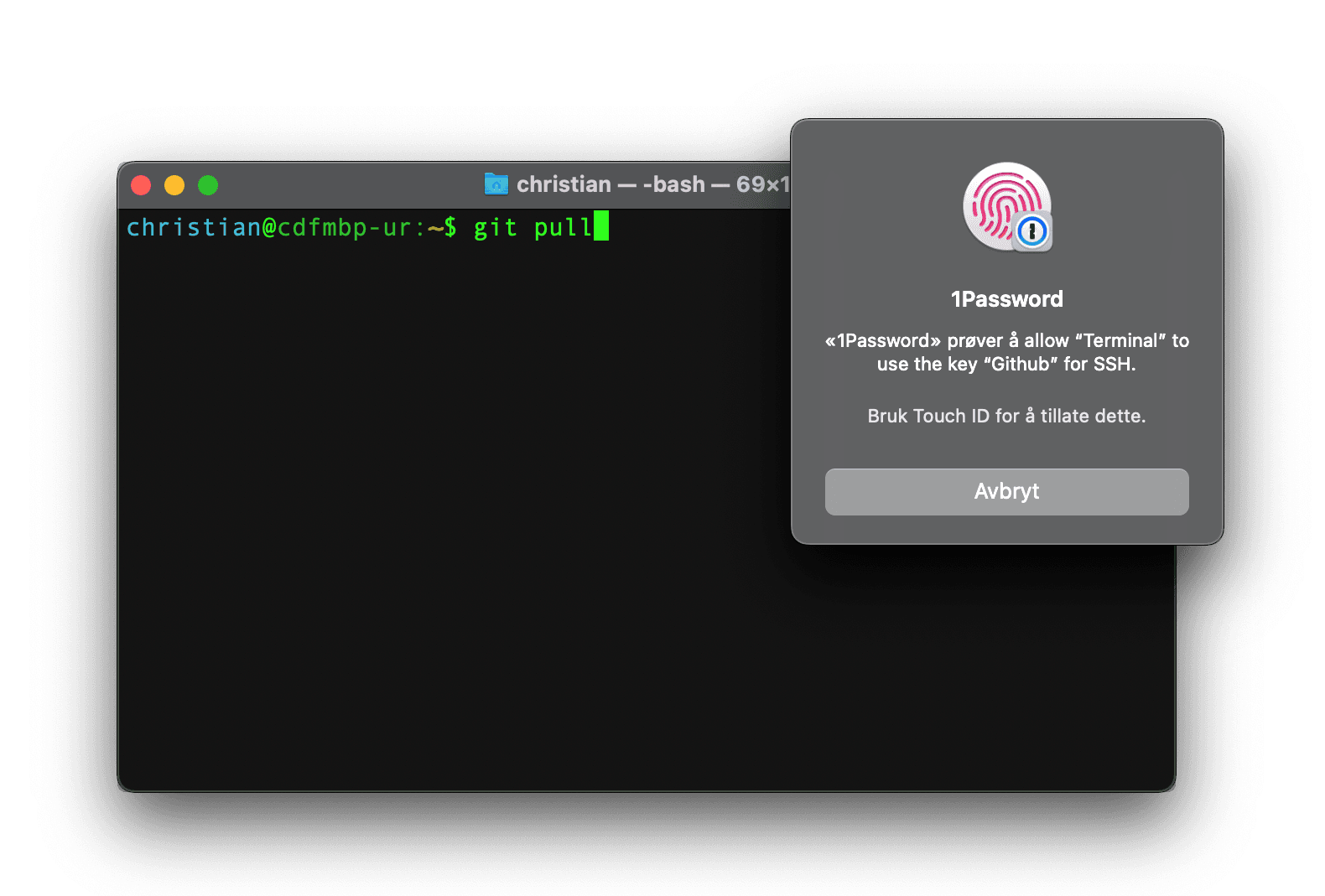
The function itself is easy to use: Just open the settings and switch on "Use the SSH agent". If you have biometric unlocking activated, you will receive a request every time a key is attempted to be used. If you would rather have a mix of local keys and keys stored in 1Password, it is entirely possible to achieve this by adding one or more exceptions to your local SSH configuration.
Sign git commits
SSH keys can be used for more than just authenticating network connections, such as signing git commits. Basically, git does not confirm the author's identity, which can be (humorously) exploited in git-blame-someone-else. However, this is a real vulnerability that can be used to sneak in malicious code: Raise your hand those who remember to ask their colleagues if they actually wrote the code you are going through.
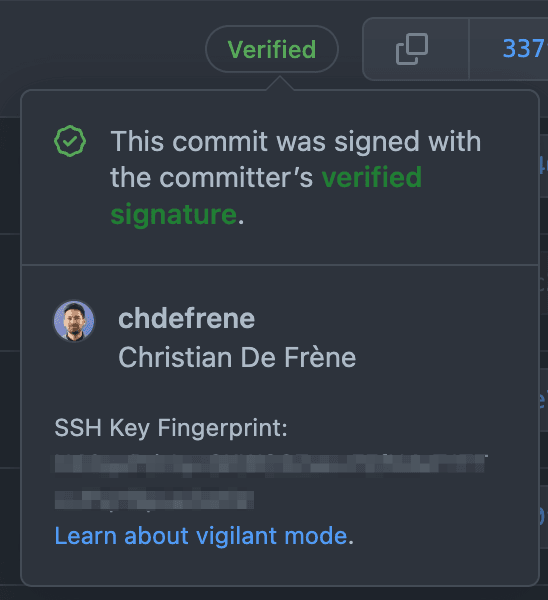
Fortunately, just like with the SSH agent, you can configure git to sign commits using keys from 1Password. If you put this key in the user settings on, for example, GitHub, you will get a nice, green "Verified" sign on all commits you push up. Check out this video for how easy it can be configured!
Provisioning .env files
For the average developer, checking in the .env file into git must feel like breaking one of the seven deadly sins. One regularly hears horror examples where secrets were leaked because someone had forgotten to add the file to .gitignore, and uploaded it by mistake. No, the correct way is of course to make your own .env.example-file without secret values, which can be safely checked in. When new developers set up the project, they get the values from 1Password or another password manager. Themselves .env-file should never be shared.
Since you already have all the secrets in 1Password, wouldn't it be better to have your application retrieve them directly from there? It's actually possible using 1Password's command line tool. Behind the scenes, each field you enter in the password manager is assigned a separate, path-like ID. We can later use this to provision the real, secret value before the application is run, also in production. This way you can safely check in one .envtemplate containing only 1Password references, without putting secret values in git.
Let's say we have an application that will use our AWS account. Then a typical .env file would look like this:
AWS_ACCESS_KEY_ID=op://Development/AWS/access_key_id
AWS_SECRET_ACCESS_KEY=op://Development/AWS/secret_access_key
AWS_REGION=eu-north-1
To run the application locally, one uses the command line tool to provision all environment variables before starting the application in the usual way:
op run --env-file=.env -- npm run dev
When the application is to be deployed for production, some additional setup is required to ensure secure provisioning of external services. The recipe for how to achieve this can be found at 1Password's websites.
More possibilities
These three functions are the ones I immediately saw the utility of, and have adopted in my daily work. However, there is more functionality than this, and in particular the command line tool, combined with various SDKs, allows you to develop applications that use 1Password as a secure cloud storage platform. Then you suddenly have a perfectly good alternative to a "keyvault" service from the big cloud solutions.
Build the future of your product with zero headaches
From MVP prototypes to scalable platforms, our full-stack dev team turns your roadmap into rock-solid code. Get to market faster without sacrificing quality.
Get started


